
7 Ways to Design a Quote Slide for Business Decks
Explore 7 creative quote slide design ideas for PowerPoint. Make your presentation quotes visually striking with layouts, backgrounds, and typography tips.
A well-placed quote does real work in a business presentation: it opens a keynote with authority, marks the transition between deck sections, anchors a mission or values slide, or lets a customer’s voice speak for itself in a sales pitch.
The challenge is its design. If you only copy a quote onto a default PowerPoint slide then it will look like an quick fix that won’t get enough attention. I put below several slide design ideas. Use them to turn your quote into a deliberate moment in the deck.
TL;DR summary – 7 ways to design a quote slide in PowerPoint: (1) Big background photo with a semi-transparent text panel. (2) Hand-drawn box on a textured background for a less formal feel. (3) Clean white background with a single watercolor accent. (4) Outlined frame over a dark photo. (5) Speech bubble – sketched or geometric. (6) Flat ribbon banner for brand-consistent corporate decks. (7) Photo or illustration of the quote’s author. The principle: a quote slide is a pause in the narrative — it should breathe, not compete with the surrounding content.
Quotations can appear in almost every business presentation: they can be motivational or provoking. They can nicely strengthen your arguments, add authority and a change of pace to a business presentation.
All example images below can be found in the Quotes slides collection (see details by clicking the pictures).
To illustrate a quotation and support your story, try one of these ideas:
1. Use a Big Picture on a Slide with a Transparent Text Field
Above we present a slide with a quotation on a rectangle with semi-transparent blue filling. Thanks to this technique the text will be visible and the slide will be more visually appealing. You can also use it on pictures with lower contrast.

2. Illustrate Hand Drawn Box with Creative Background
We prepared an example of the quotation with a textured pattern and a scribble text box on the top of it. This kind of graphics will help you to show citations on a slide in a nontrivial manner.

Such a template will also be useful when you want to include more text or you have a longer quote.
Design tip: To make quote slide look professional, make sure there is enough space around citation text on the slide. It should not go too close to the slide edge or frame. If the text is longer – over a paragraph, don’t use central alignment, as it’s harder to read.
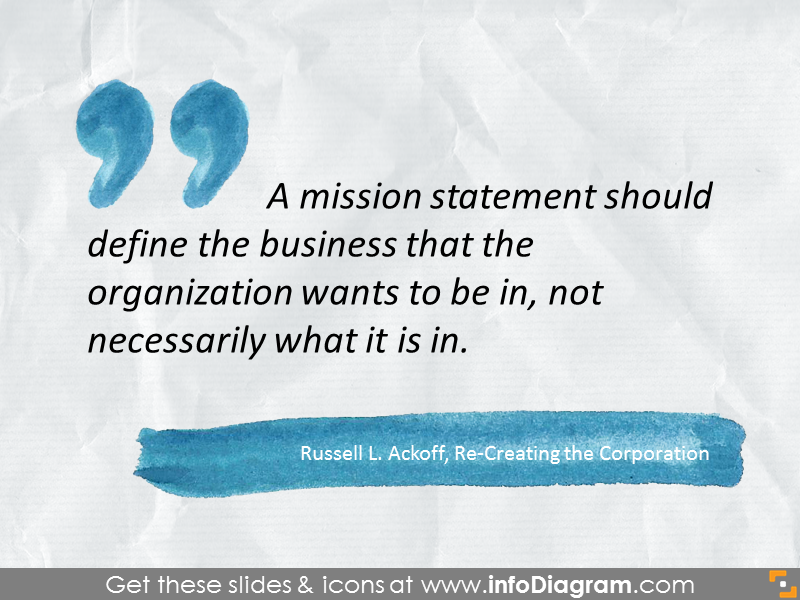
3. Present a Simple Slide with Watercolor Quote Design
If you don’t want to use pictures and prefer clean simple slides, using a plain white background is a safe bet. It looks elegant and neutral. You can also add some little creative elements to the slide: watercolor shapes for instance.
4. Use a Dark Picture Background with a Contrast Frame
Another simple design idea, especially useful if you have a dark picture – put a framed rectangle with transparent filling. Place the text inside the outlined box and optionally add a line as a divider between the quote and the author.

5. Apply Speech Bubble in Quote Design
We also propose using a speech bubble on your slide. There is one such shape among standard PowerPoint shapes, but you can go for a more unique sketched bubble. We also added a picture to the background.

6. Use Flat Style Banner
You can also add flat ribbon labels and banners over a picture or plain slide background. This kind of graphic will suit more official presentations, and you can use brand colors for such a banner.
Flat ribbon banners work especially well in brand-controlled corporate decks such as board reports, investor presentations, sales pitches. In those presentations you want the quote to feel like an intentional design element, not a decoration.
Design tip: Use your brand color for the banner and the quote inherits the deck’s visual authority.

7. Add an Illustrative Picture or a Photo of the Quote Author
Using supportive illustrations is always a good idea, whether it’s a photo or a symbol. Notice how we used a picture with a child on it for Antoine de Saint-Exupéry’s quote about children and adults.
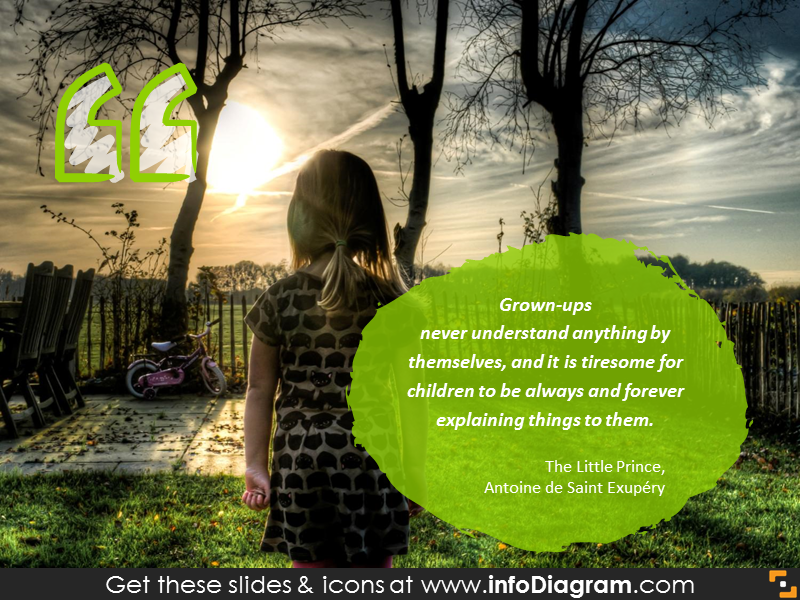
If you can get a picture of the author in good quality and with proper copyrights, use it. Pictures of famous people from less recent times can be found in wikiquote.org. This is also a good place to find a citation in general.
Above we proposed a few ideas on how you can illustrate quotations on your slide. All the examples above work for business audiences who expect a deck to look polished, not generic.
Resources: Quote Slides Collection
To help you illustrate citation we designed a PowerPoint template you can reuse. Pick the layout that fits your next deck – don’t rebuild it from scratch. Every example above is included in our Quote Slide PPT Collection: fully editable, ready to drop into your presentation in two clicks.
If you want to get more creative infographics slides, check this Hand Drawn Icons and Diagrams Mega-bundle with over 700 unique editable pictograms.
For more inspiration, check video examples on our YouTube channel.
Graphics sources used in this blog: