
5 Tips on Designing Professional Calendar Table in PowerPoint
Are you already planning the new year? If you are working on building next year’s plans for your business, you might have found that default calendar graphics don’t suit your needs. If you want to take a creative approach to planning your year, read on to get inspired and learn 5 tips on designing attractive calendars.
Creativity is often necessary when planning time management strategies for an entire team or department. We created the calendars and timeline graphics collection in the US and EU format to make planning easier.
You can find all calendar slides mentioned in this blog
here: PPT Calendar with Sunday 1st, or Calendars in EU format with Monday 1st.
Articulate Your Plans for the New Year with Graphics
What do you need when building and planning the year ahead? What tools will help you present a cohesive, visually beautiful calendar for next year?
1. Highlight Special Dates in Calendar Graphics and Deadlines to Make Them Stand Out
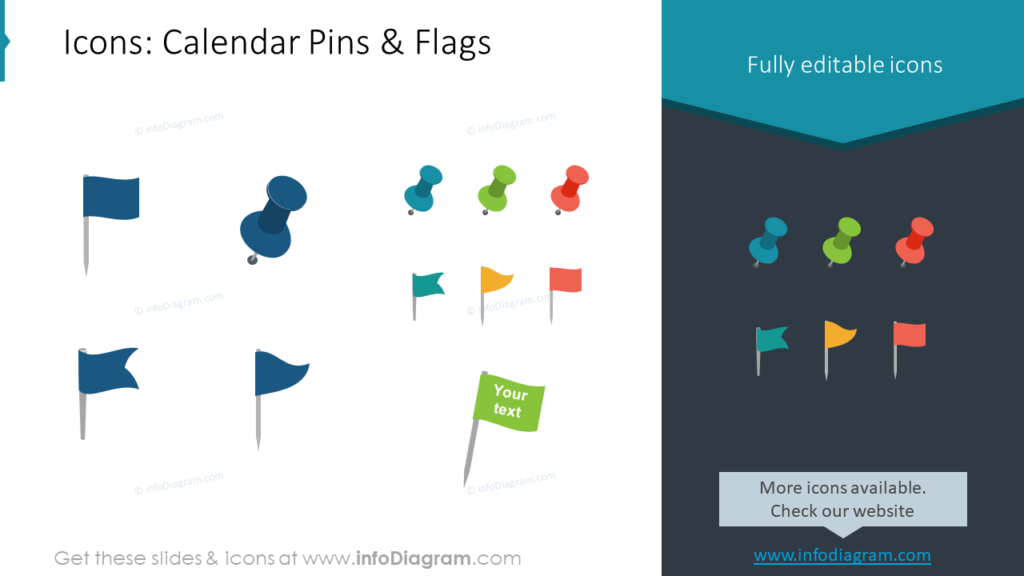
There are many ways to draw attention to special dates. Flags, pins, and icons can all draw your audience’s attention to significant dates.
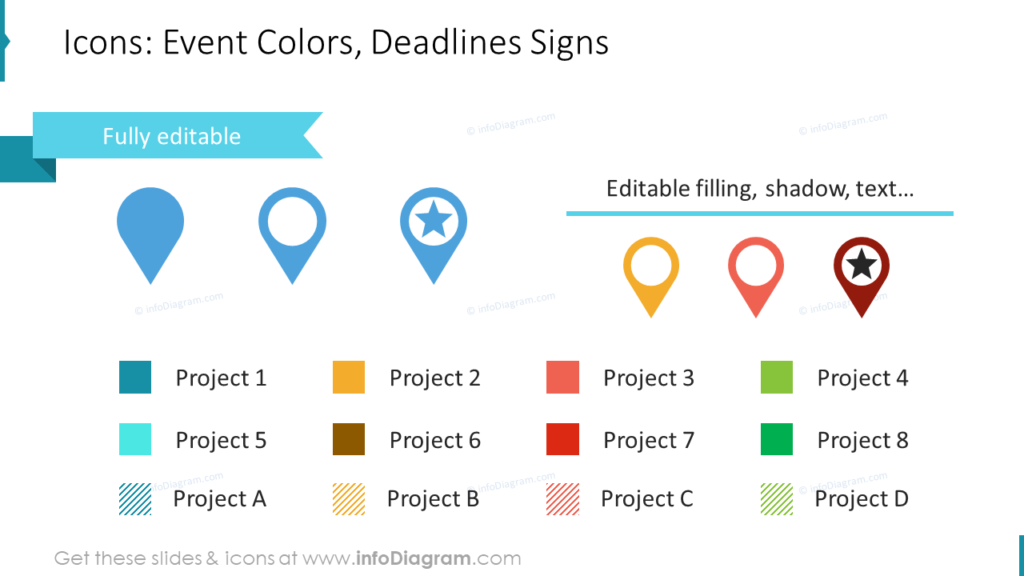
Flags can even serve as labels if you add text. Icons can serve as markers for deadlines, especially if they are color-coded.
2. Simulate a Physical Planner with Sticky Note Icons
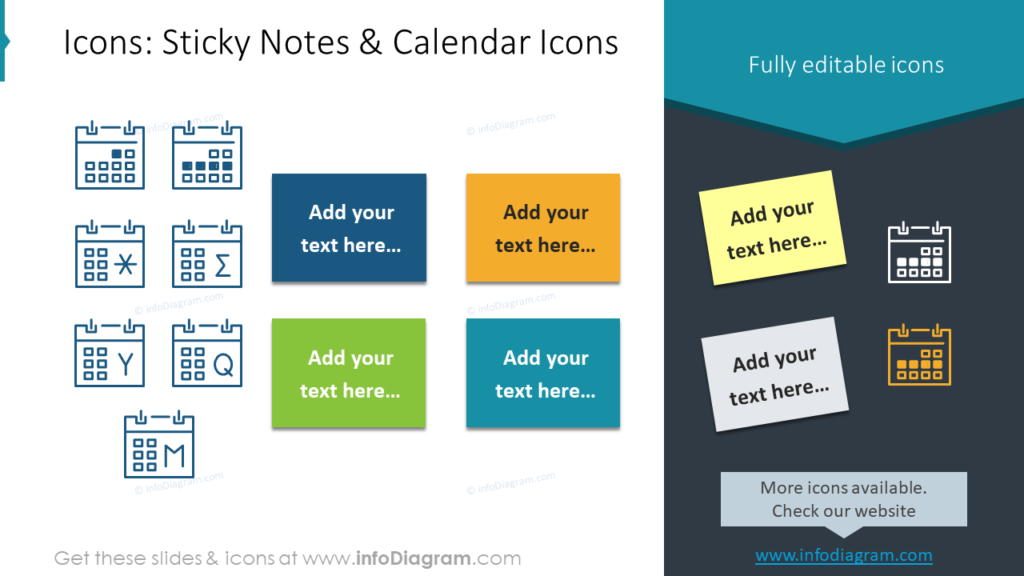
A creative way to make your plan for the next year unique is to incorporate sticky note graphics in your PowerPoint presentation. These fully editable graphics can label special events or deadlines. They can also be used to share supplementary information.
3. Grab Your Audience’s Attention With Hand-drawn Markers in Calendar Graphics
Hand-drawn marker icons look creative and professional. By customizing the colors, filling, and shadow on each marker, you can match the graphics. They can be modified to match one another or other graphics on a given slide. This will help make your presentation easier to follow and more cohesive.
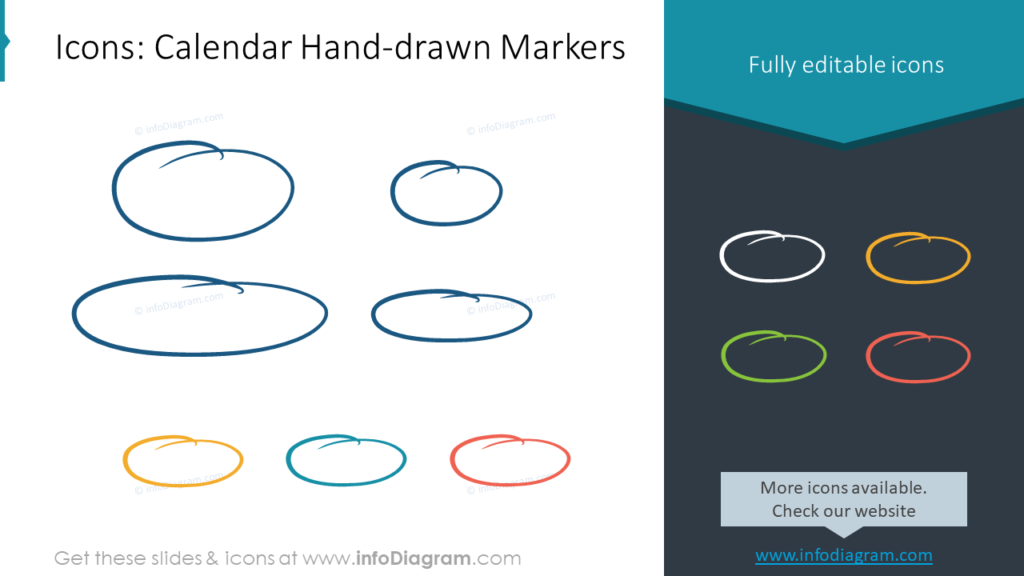
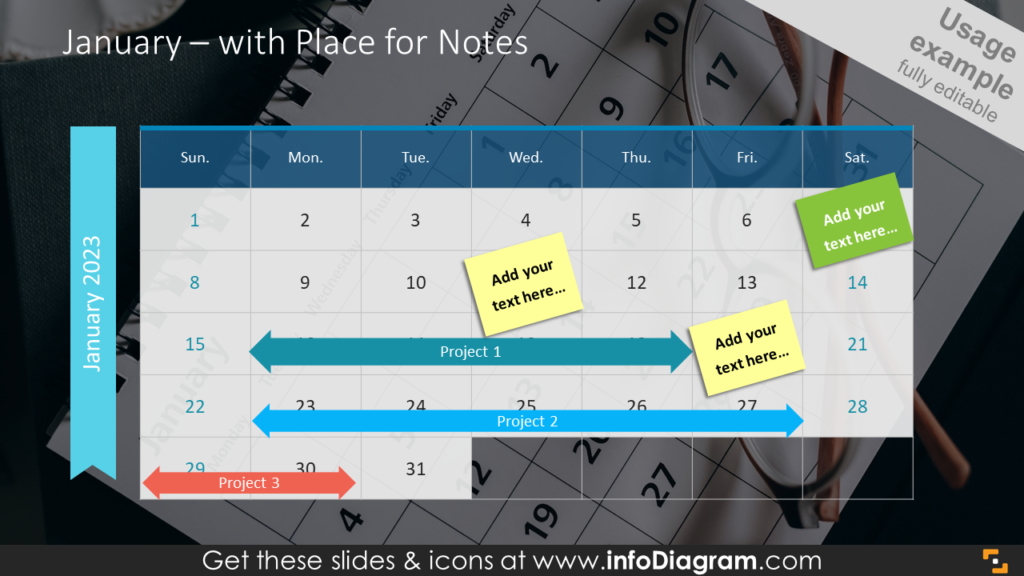
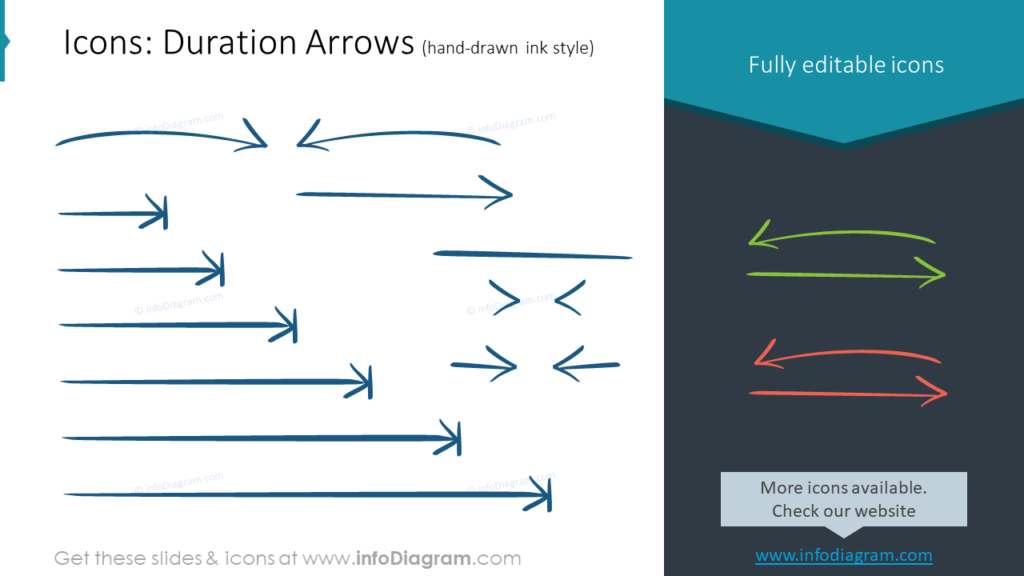
Circles can be used to accentuate special dates or even details provided as an explanation. Duration arrows can be used on calendars to show the duration of a project or the length of time between deadlines or projects.
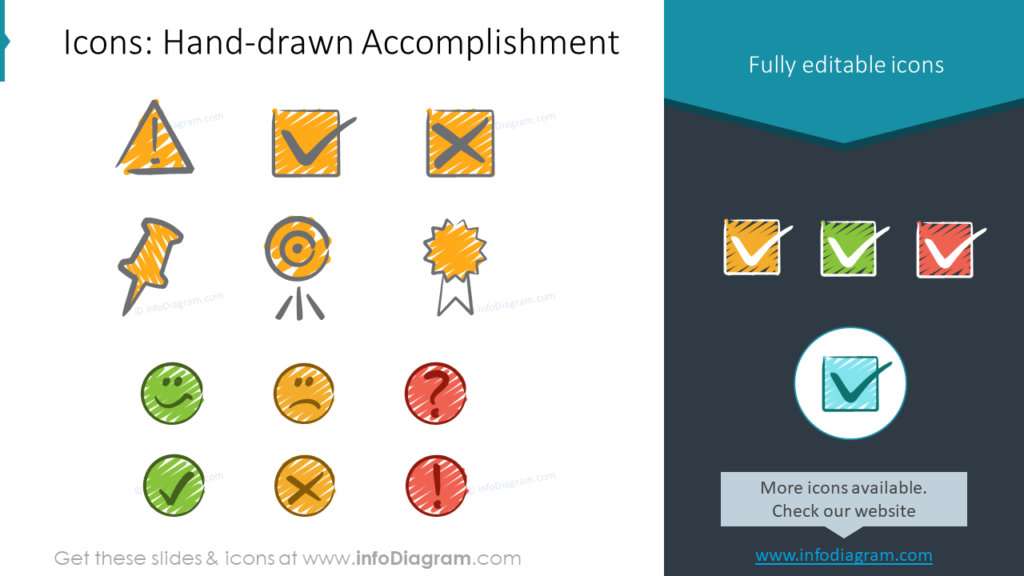
4. Create Beautiful Cohesive Charts With Hand-drawn Accomplishment Signs
Need to convey an alert or warning? Need to mark something as positive or negative? You can do these things and many more with hand-drawn accomplishment signs. Create easy-to-follow graphics and powerful visuals for abstract ideas with these small accomplishment signs.
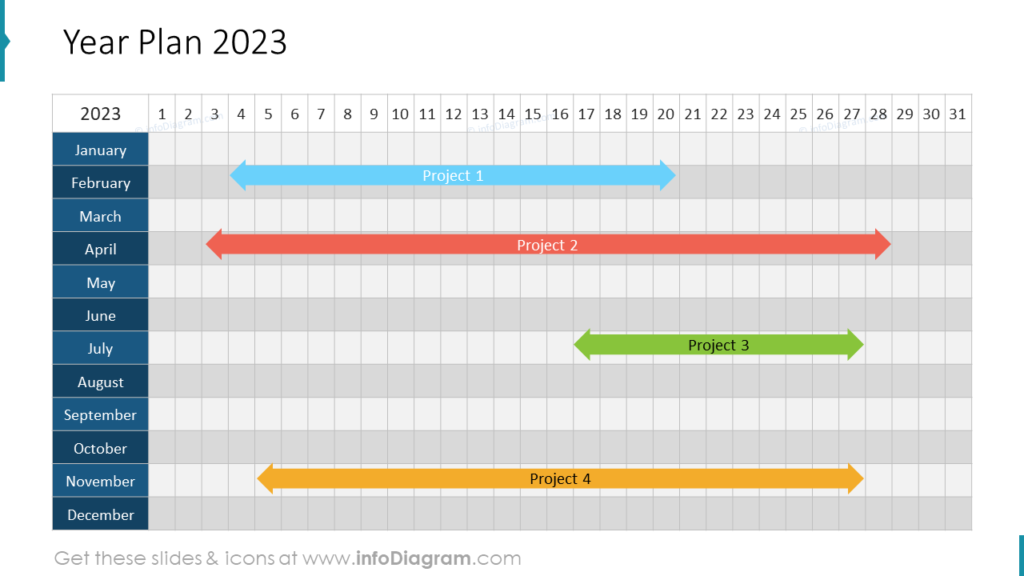
5. Present the Entire Year at Once
Explaining your plan for the entire year doesn’t have to be confusing. You can put all of your ideas together on one slide. In the example, you see many arrows representing the timeframe of different projects throughout the year. You can accentuate special dates with other icons if you wish but must be mindful to keep the presentation from becoming too visually busy.
You can mark special dates, deadlines, and project durations or imitate physical planners with sticky notes and hand-drawn icon sets. This will allow you to create beautiful and understandable charts.
Are you preparing a quarter or annual business performance summary? Check our blog 6 Examples of Presenting Business Highlights in Your Annual Report using PowerPoint tools.
For more inspiration, subscribe to our YouTube channel:
Resource: Calendar Graphics US format
Avoid having content that is too busy by using these easy-to-customize, pre-made sets. Boost your calendar slides with cohesive, creative tables: